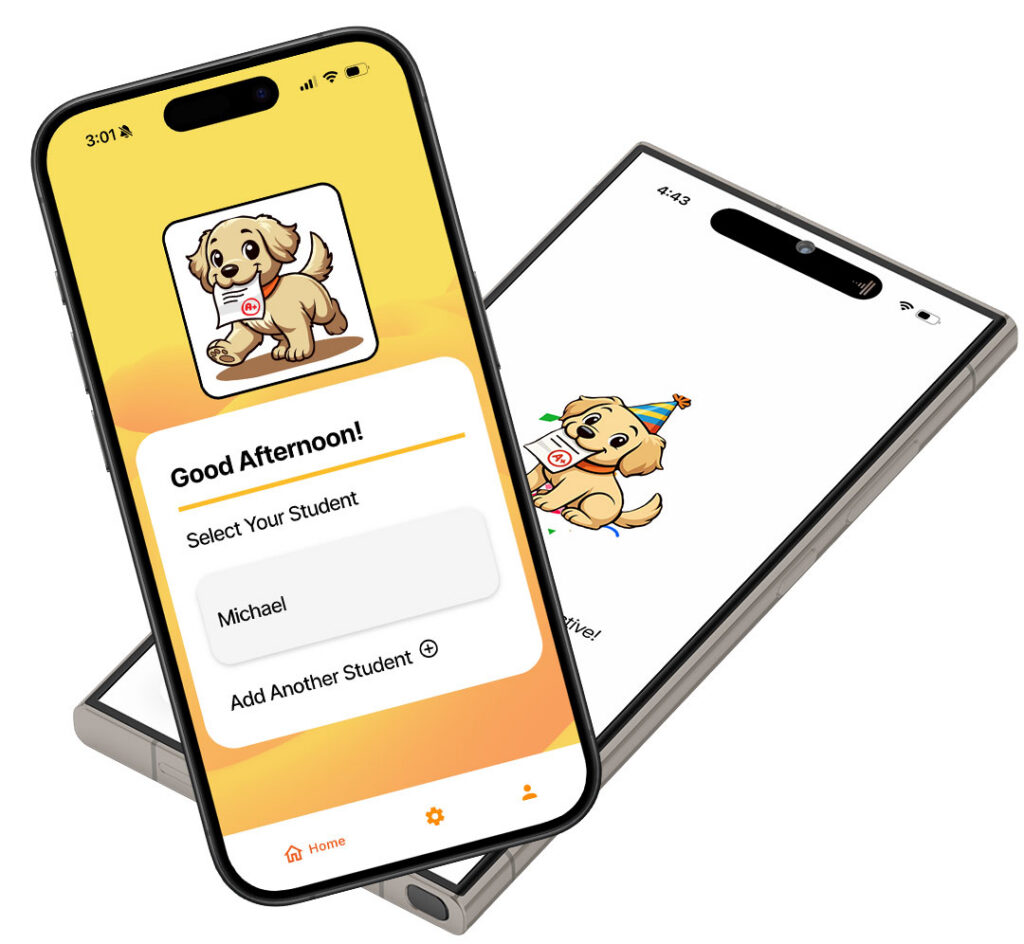
How to Add a Student
Before anything else, download the app to your device and set up your account.
We take privacy very seriously, so you’ll be asked to do all those typical things like accept terms, validate your email, and once that’s done…
Add a student by following these steps:
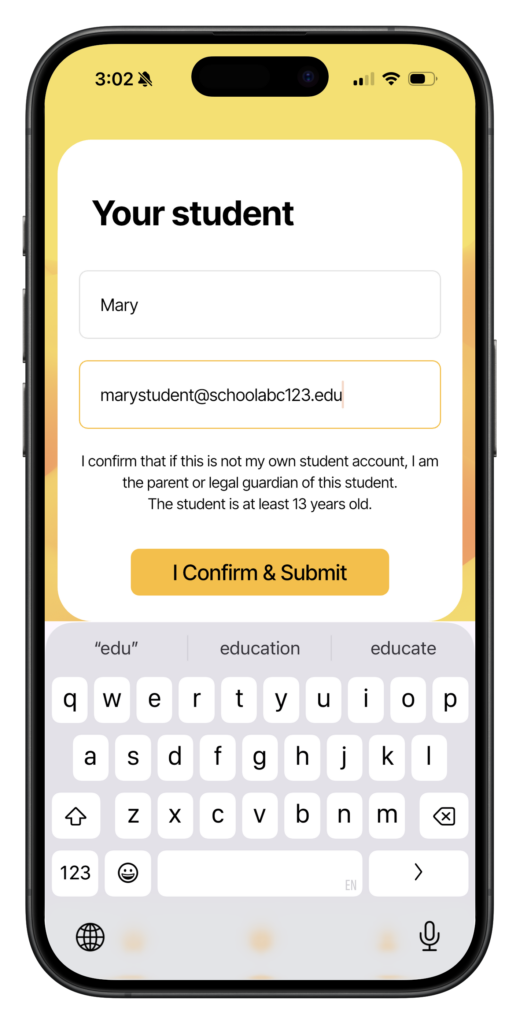
1. Enter the student into your app.
Enter their name (first name only is fine) and their school email address.
They will need to have a device on hand that is logged into that school account and has a camera to scan a QR code.
Click “I confirm & Submit.”
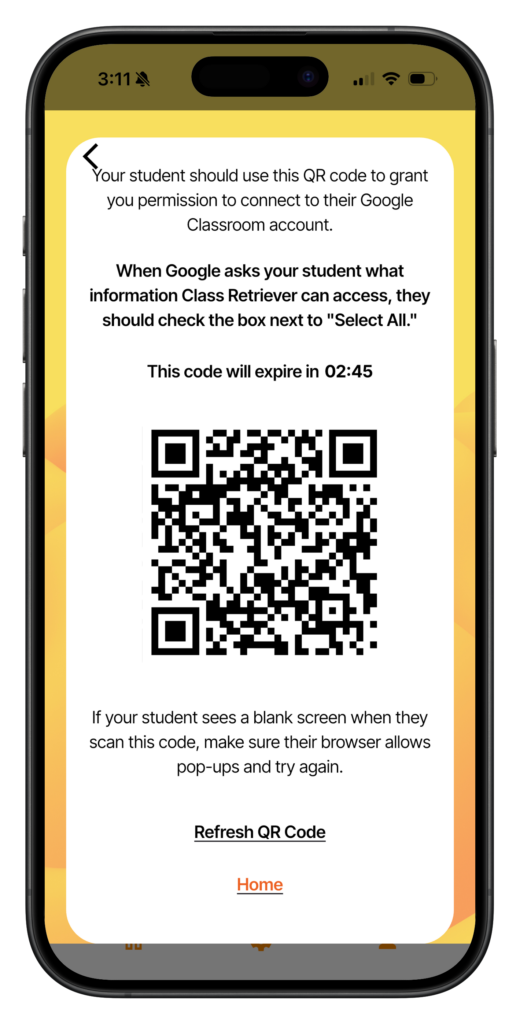
2. Have your student scan the QR code with their device.
This QR code will be unique to your student and will time out after about 3 minutes.
Make sure your student is logged into their school account on their device before scanning the code.
When prompted, click “I confirm & Submit.”
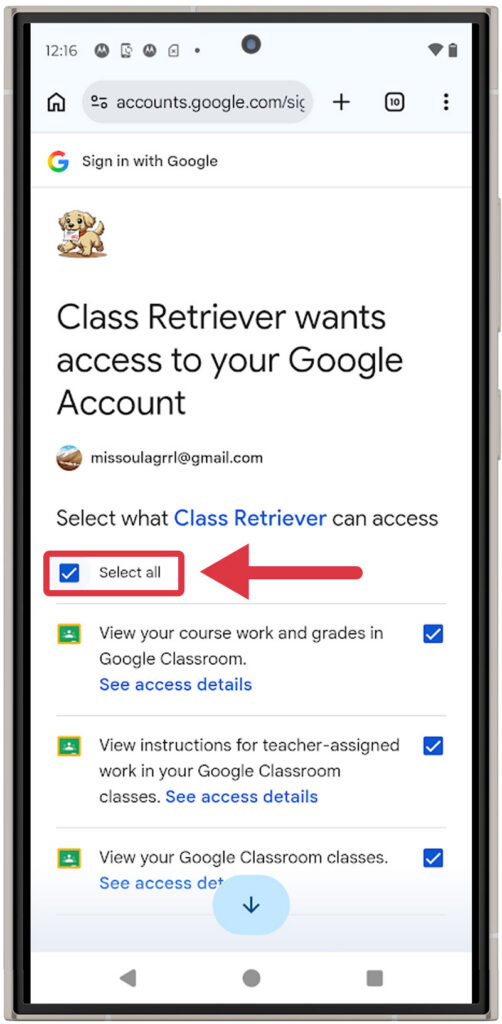
3. Student: "Select All."
(depends on school district settings)
If Google asks your student what information it can access, check the box next to “Select All.”
4. Hooray!
Your student is now connected and you can start retrieving their assignments!
Still having trouble? Email [email protected]